
One company card can pay a fuel station in Sharjah and an ad platform billing from abroad in the same week.
This guide covers the spend controls that decide which of those payments go through, with the setup for each one in Pemo, our spend management platform.
TL;DR
- Spend controls are the limits, merchant and country rules, approval steps and budgets a business applies to company spending.
- Card-level controls decline rule-breaking payments: Pemo Budgets, by contrast, alert owners and let the purchase through.
- A UAE-only card rejects foreign online charges: subscriptions billed from abroad need a card that is allowed to pay internationally.
- Cash withdrawals need an Admin to switch them on: as of October 2026, Pemo caps them at AED 10,000 per transaction and AED 70,000 a month.
- A practical setup order in Pemo: card limits, Advanced Controls, cash access, Approval Policies, then Budgets.
What are spend controls?
Spend controls are rules on company cards, cash withdrawals, approval requests and budgets that set or track how much employees can spend and where.
In Pemo, they take effect at four moments:
- Before a card is issued or its limit changes: the New Cards & Spending Limits Approval Policy names who has to sign off.
- At checkout or the ATM: card limits and Advanced Controls allow or decline the transaction.
- When an expense or payout request comes in: an Approval Policy sends it to the approvers named in that policy.
- Over a budget period: Budgets compare spending with the allocated amount and warn owners before the allocation runs out.
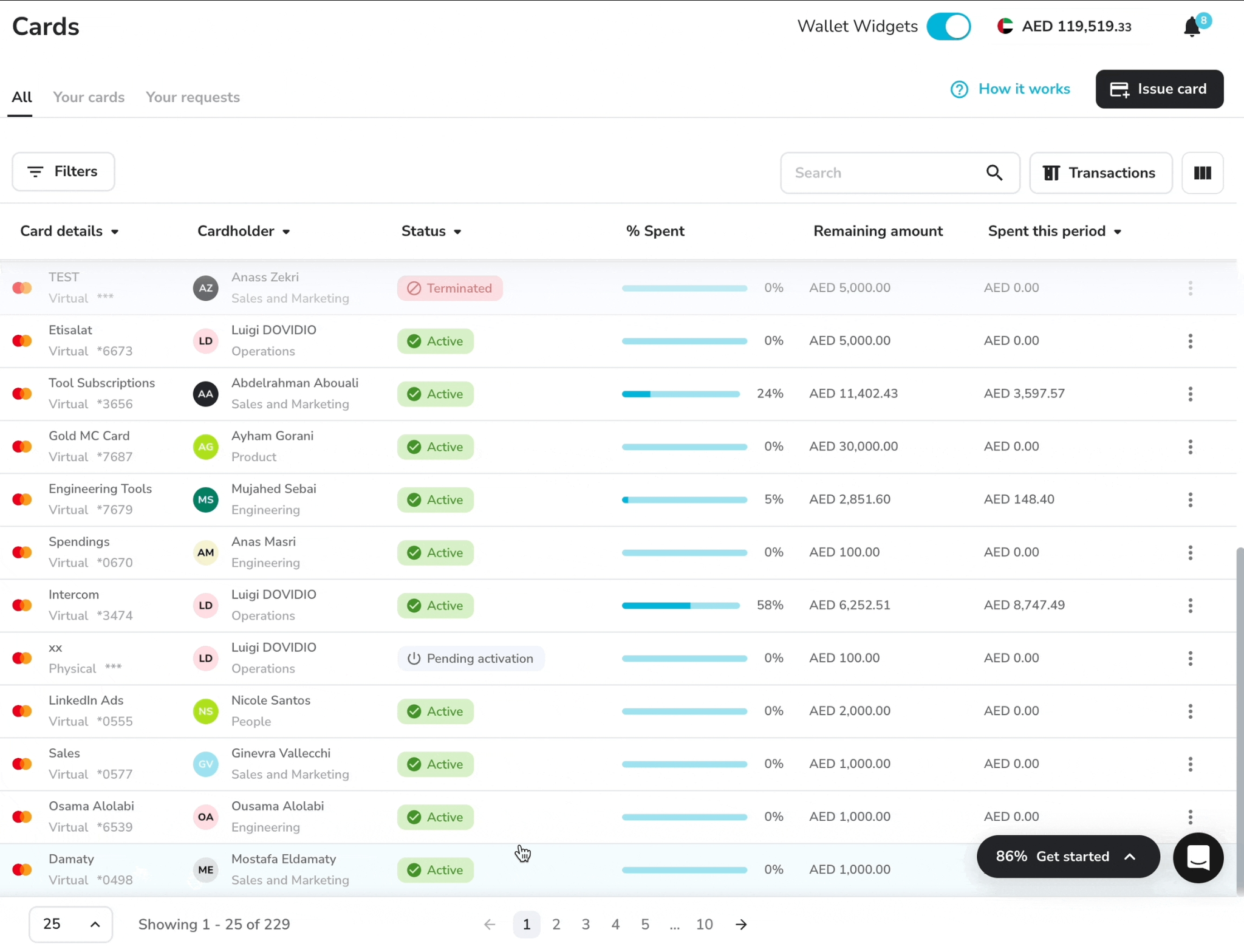
Our guide on how to control employee spending in the UAE compares the wider methods, from petty cash to bank cards.
Do all spend controls block a payment?
No, only Pemo's card-level controls decline a payment outright: the Spending Limit, Transaction Limit, Advanced Controls and the ATM Withdrawal Limit.
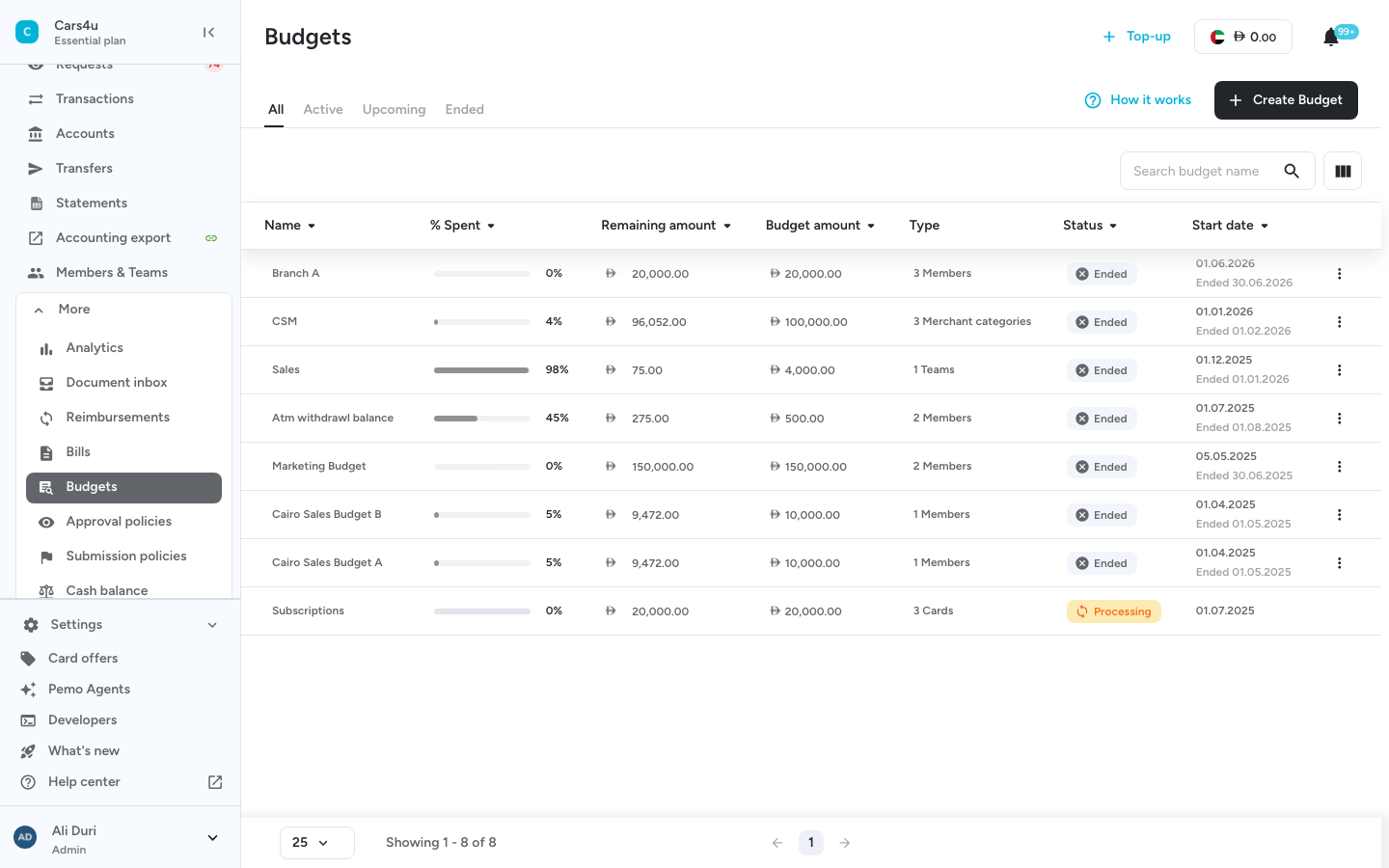
Budgets in Pemo alert owners as spending nears or passes the allocated amount without holding the purchase back.
Pemo's help centre describes Budgets as a visibility tool that doesn't impose hard restrictions.
Approval Policies fall in between, since they decide who has to review a request.
Pairing the two kinds gives a firm cap where a card must not go over and an early warning where some flexibility is fine.
A marketing team, for instance, might run on a quarterly Team-Type Budget while each of its cards carries a firm monthly Spending Limit.
Why do companies in the UAE use spend controls?
Companies in the UAE use spend controls to stop out-of-policy card payments before they clear and to see company card spending as it happens.
Here's what that looks like in Pemo:
- Fewer out-of-policy payments: a card limited to approved spend categories can't be used at other merchants.
- Clear ownership: Team-Type and Member-Type Budgets show how each department or person is tracking against their allocation.
- Less cash on hand: capped physical and virtual cards can take over from a petty cash box.
- Faster approvals: approvers get real-time notifications and can sign off on the go.
What types of spend controls can a UAE finance team set?
A UAE finance team on Pemo can set seven types of spend control, from per-card caps and Advanced Controls to approvals and budgets.
The table compares all seven:
➡️ A note on reading the table: an Admin sets the first five controls on each card.
Approval Policies and Budgets work across teams and requests.
One Pemo card can combine several controls, for example, a weekly Spending Limit plus a spend category rule and a location rule.
Pemo groups the location and category rules under Advanced Controls, which is why both appear together in a card's settings.
Which spend controls suit common UAE expenses?
Recurring fixed costs suit tight card rules in Pemo.
Variable team spending is easier to manage with a Budget that flags overspending early.
Each setup below combines two or more of Pemo's controls, because a single rule rarely covers a whole type of expense:
- Subscriptions billed from abroad: a card set to UAE (Local) declines charges from merchants outside the UAE.
A subscriptions card needs the International or Selected Countries setting, under a monthly Spending Limit close to the expected total.
- Team travel abroad: a card limited to Selected Countries keeps payments to the trip's destinations.
A Transaction Limit sized to the largest booking and a One-Time Budget covering the trip dates complete the setup.
- Fuel for drivers: a driver's card can be restricted to the fuel spend category and to UAE (Local), with a weekly Spending Limit that resets each Sunday.
- Suppliers who only take cash: one physical card with ATM withdrawals switched on and a low ATM Withdrawal Limit keeps cash withdrawals on a single capped card.
- A department's quarterly spend: a recurring Team-Type Budget on a quarterly cycle tracks the team's total.
The New Cards & Spending Limits Approval Policy can route requests for a higher card limit to an approver.
How do you set up spend controls in the UAE with Pemo?
I'd set up spend controls in Pemo in five steps: card limits first, then Advanced Controls for categories and locations, cash access only where needed, Approval Policies, and finally Budgets.
Pemo (that's us) offers the best way to set up spend controls in the UAE with its card-level limits and Budgets that give early warnings on team spend.
Our spend management software issues physical and virtual corporate cards that report into one spend management dashboard, giving finance teams live visibility over every card transaction.
Disclaimer: Pemo is a financial technology provider, not a bank. The Pemo card is issued by Nymcard Payment Services LLC, which is authorised by the Central Bank of the UAE.
Here's what each step covers:
- Step 1, card limits: a Spending Limit for each card, plus a Transaction Limit where single purchases need a ceiling.
- Step 2, Advanced Controls: approved spend categories and countries for each card.
- Step 3, cash access: ATM withdrawals switched on only for the physical cards that need them.
- Step 4, Approval Policies: adjusting the default approvers for each type of request, from card expenses to invoices.
- Step 5, Budgets: allocations that track spend and warn owners before the allocation is used up.
Let's go over each step in more detail: 👇
Set spending and transaction limits on each card
An Admin sets the Spending Limit on each Pemo card and can add a Transaction Limit for single purchases.
- Spending Limit: caps the card's total over a daily, weekly, monthly or yearly cycle. When the card reaches that cap, payments are declined until the cycle resets.
- Transaction Limit: a per-purchase ceiling that stops one large payment from using up most of the Spending Limit.
- Weekly cycles: in Pemo, these start on Sunday. A limit changed mid-week applies from the following Sunday.
- Monthly tracking: Pemo tracks card usage at a monthly level. A daily or weekly limit therefore adds up to a monthly ceiling, which the help centre shows how to calculate.
Advanced Controls limit where a card can pay
Advanced Controls in Pemo restrict each card by spend category and by location.
They work on physical and virtual cards and take effect as soon as an Admin saves them.
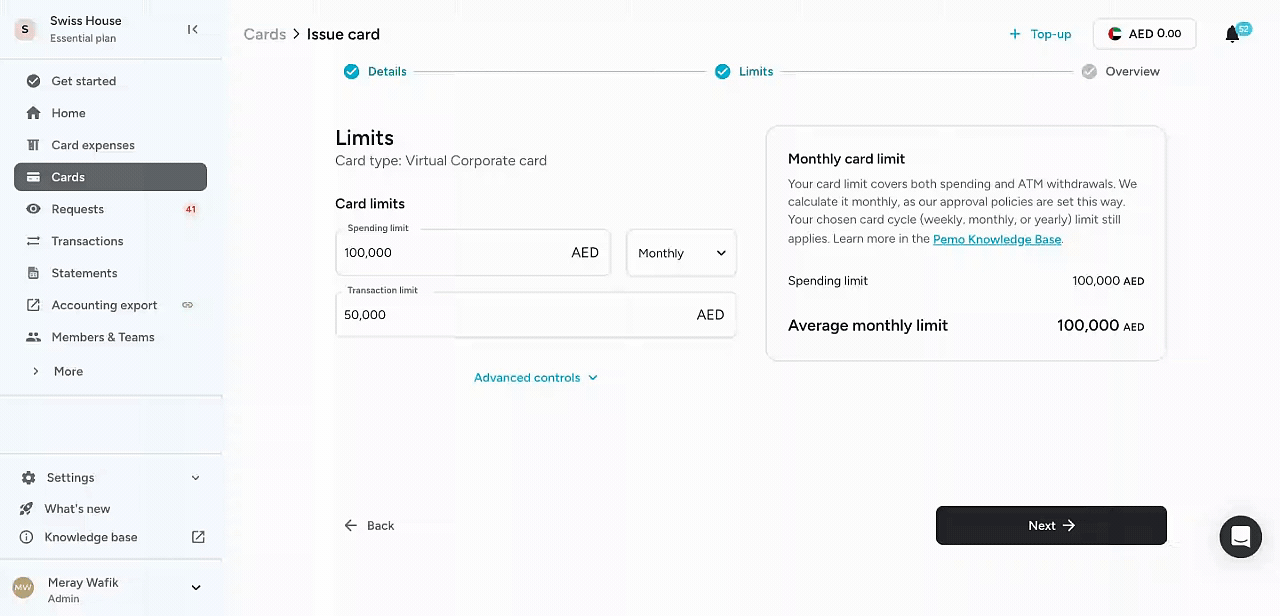
Rules can be added while a card is being issued or requested, or later from the card's settings.
- Allowed Spend Categories: Pemo bundles over 100 merchant category codes into 18 spend categories. Each card can be limited to the categories it needs, with other merchants declined.
- International: no country restriction on the card.
- United Arab Emirates (Local): UAE merchants only. Charges from merchants abroad fail on this setting, online purchases included.
- Selected Countries: only the countries the Admin picks.
Admins can change or drop these rules later from the same card settings.
Turn on cash withdrawals only for cards that need them
ATM withdrawals are available on physical Pemo cards once an Admin enables them.
A capped physical card gives teams that still pay some suppliers in cash a fixed ceiling on withdrawals.
Pemo links its own cash limits to keeping cash transactions compliant and accurately recorded.
- ATM Withdrawal Limit: the cash ceiling for that card.
Pemo turns down withdrawals once the card hits it. - Pemo's maximum cash limits: as of October 2026, the help centre lists AED 10,000 per transaction, AED 20,000 per day, AED 35,000 per week and AED 70,000 per month.
- Lower caps: any card can be set below those maximums.
- Withdrawal count: a ceiling of 8 ATM withdrawals in any one day.
Approval Policies cover four kinds of request
Pemo's Approval Policies decide who signs off on each type of request, with expense approvals routed to different people by spending amount.
Every Pemo account starts with a default policy for all four types, ready to customise.
- Card Expenses: purchases made on Pemo cards go to the chosen approvers for review.
- New Cards & Spending Limits: sign-off before a card goes out or a cap changes.
- Reimbursements: out-of-pocket claims from any member follow the policy's approval levels.
- Invoices: supplier payout requests pass through the policy's approvers.
Each policy can have several approval levels. At each one, approvers can be named users or roles such as Admin or Accountant.
A two-level Card Expenses policy, for example, could send routine purchases to a named team lead and larger ones to the Accountant role as well.
Approvers get real-time notifications and can respond on the go.
Track team and category spend with Budgets
Budgets in Pemo compare spending with an allocated amount and never block a payment themselves, even past 100%.
Alerts reach budget owners while there's still time to reallocate before the period closes.
- Budget types: Card-Type, Member-Type, Team-Type and Merchant Category-Type, matching Pemo's four ways of grouping spend.
- Recurring: restarts each month, quarter or year, for the number of cycles chosen at setup.
Twelve monthly cycles, for example, cover a full year with a reset each month. - One-Time: fixed start and end dates, such as a product launch or a conference.
- Budget owners: the team members chosen to run the budget, each with their own notification toggle.
- Alerts: at 80% of the allocation and again at 100% or more, plus notices when a budget is created, edited, deleted or ended.
- Budget view: amount spent, amount remaining, type and status (Active, Upcoming, Ended or Processing).
- Backdated budgets: a budget can start on a date that has already passed.
Until Pemo finishes tallying the spend from those earlier days, its status reads Processing. - Edits: name, description, owners, amount and type stay editable after setup.
A budget can also be deleted outright.
💡 Pro tip: a card can belong to a Card-Type Budget and keep its own Spending Limit at the same time.
That combination gives the card a firm cap plus an early warning as spending approaches the allocation.
Getting started with spend controls in Pemo
There's no need to switch on every control at once, especially for a team using company cards for the first time.
Card-level rules are the natural place to begin, because they apply from the moment a card is issued.
A sensible first step is one card for one predictable cost, for example software subscriptions, with a Spending Limit and a Card-Type Budget.
Once that card has run cleanly for a cycle or two, the same approach can extend to travel and driver cards.
You can get started with Pemo or book a demo to see the card controls and Budgets in action.
Spend controls FAQs
Is a spend control the same as an expense policy?
Not quite, because an expense policy only describes the rules that spend controls enforce on cards and requests.
A written rule like "fuel cards stay in the UAE" becomes the UAE (Local) location setting on those cards in Pemo.
What is a merchant category code (MCC)?
An MCC is a four-digit code, assigned by the card networks, that identifies a merchant's line of business, such as a fuel station or an airline.
In Pemo, those codes are bundled into 18 spend categories (over 100 MCCs in total), each switched on or off per card by an Admin.
What happens when a Pemo card reaches its Spending Limit?
Pemo declines further payments on the card until its cycle resets.
The cycle is daily, weekly, monthly or yearly, as the Admin chooses.
Weekly cycles start on Sunday.
Can a corporate card be restricted to the UAE only?
Yes, Pemo's UAE (Local) setting limits a card to UAE merchants and declines foreign charges, online ones included.
For a short list of other countries, Selected Countries is the alternative.
Who sets spend controls in Pemo?
An organisation's Admin sets card limits, Advanced Controls and ATM access on each Pemo card.
Budget owners, chosen when a budget is created, receive its alerts and manage it.
Approvers come from each Approval Policy, either as named users or as roles.
Pemo's default policies apply to every new account and can be customised later.
How do approval workflows work for card expenses in Pemo?
Pemo's Card Expenses Approval Policy routes card spending to approvers according to the amount.
Each approval level names a user or a role, such as Accountant.


