
Receipts typically reach UAE finance teams through a card terminal, an inbox, a WhatsApp chat, and the occasional folder of paper from a business trip.
In this guide, I'll show you how to automate receipt capture across each of those routes in Pemo, our spend management platform.
TL;DR
- Automated receipt capture means each receipt reaches the expense it belongs to without anyone typing in its details or chasing the person who paid.
- Five capture channels can be automated: the payment notification photo, email forwarding, receipts sent straight from vendors, WhatsApp, and bulk upload.
- Pemo matches incoming receipts to card expenses that already exist, because each Pemo card payment creates its expense the moment it goes through.
- Recurring vendors can send receipts by themselves after their billing email is switched to a cardholder's Documents Inbox address.
- Submission Policies set the rules for which fields an expense needs and the amount where each becomes mandatory.
- Receipt Chaser and Compliance Officer take over follow-ups: cardholders are reminded and warned before a card block, which lifts by itself after the missing receipt or field is added.
- Receipt Verification checks each receipt against its expense before export to QuickBooks Online, Xero, Zoho Books, or Wafeq.
What does automated receipt capture mean for a UAE business?
Automated receipt capture means a receipt travels from the person who paid to the matching expense record through a channel that needs no data entry.
Software reads the document on arrival and links it to the transaction it explains.
A good test is whether anyone still has to hunt for the matching charge after the receipt comes in.
A receipt photo saved to a phone gallery is digital, but it isn't automated, because finance still has to pair it with a line on a statement.
In the UAE, getting each receipt to the right record tends to be harder than reading it.
One week might bring a fuel receipt from Al Quoz, a Careem trip billed by email, a Meta Ads invoice, and a supplier's invoice photographed on WhatsApp.
Those four documents come through four different routes, but all of them have to end up on an expense.
Pemo (that’s us) works from the payment side: a Pemo card transaction creates its expense the moment it goes through.
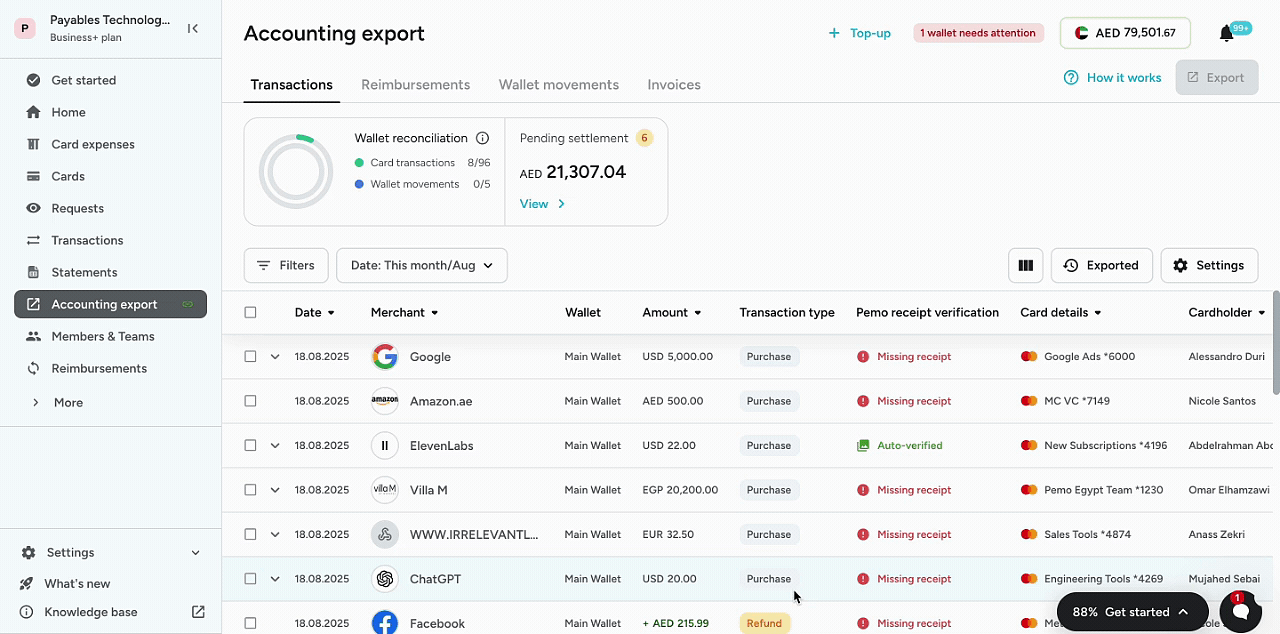
Any receipt arriving after that already has a record to attach to, whatever channel it comes through.
Which receipt channels can a UAE finance team automate?
A UAE finance team can automate five channels: the photo prompted by a card payment, email forwarding, receipts sent straight from vendors, WhatsApp, and bulk upload.
I only counted a channel if the receipt reaches software without anyone retyping its details.
The last column lists which of five tools from our receipt management tools guide (Expensify, Zoho Expense, Dext, Xero, and QuickBooks Online) document the same channel.
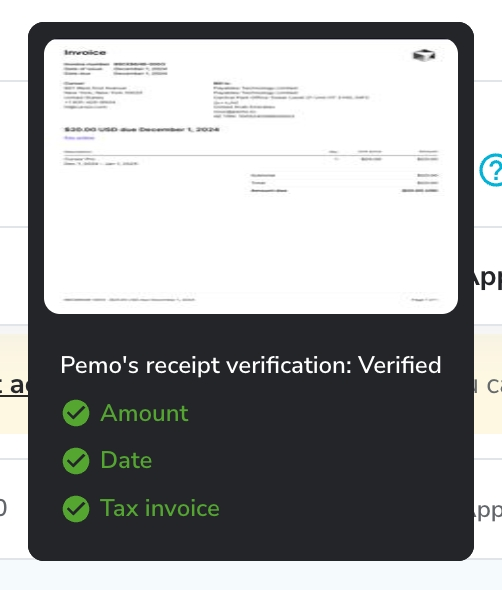
Pemo's Documents Inbox collects the receipts from four of these channels.
The notification photo goes straight onto its expense in the Pemo app.
A tool missing from a row may still support that channel through an add-on or a regional release.
Check with the vendor before you build a workflow around it.
How do you automate receipt capture with Pemo, step by step?
Automating receipt capture in Pemo takes eight steps, from writing a submission policy to exporting matched expenses to your accounting software.
Here's the order I'd set things up in: 👇
Step 1: Write the rules in a submission policy
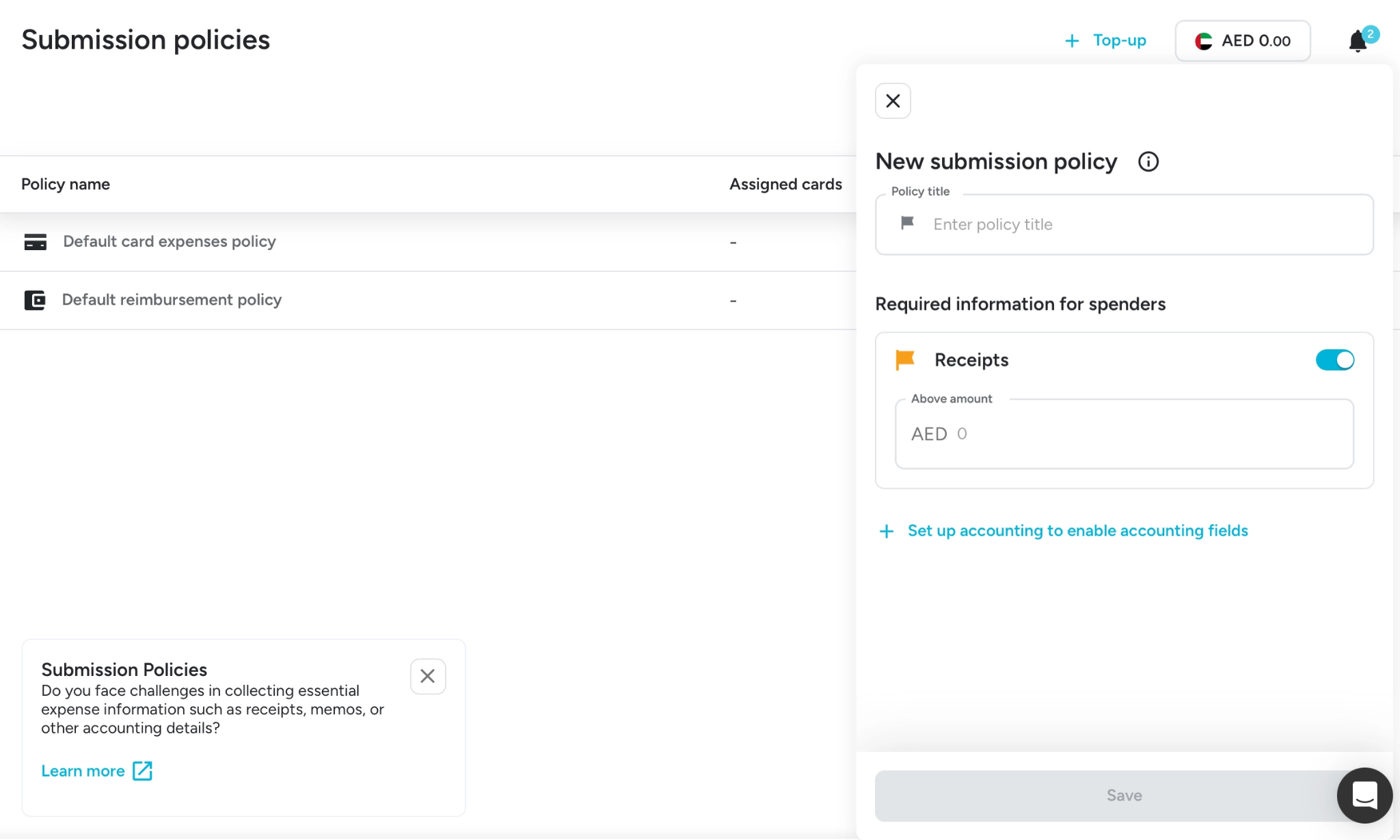
A submission policy tells Pemo which details an expense needs before it counts as complete.
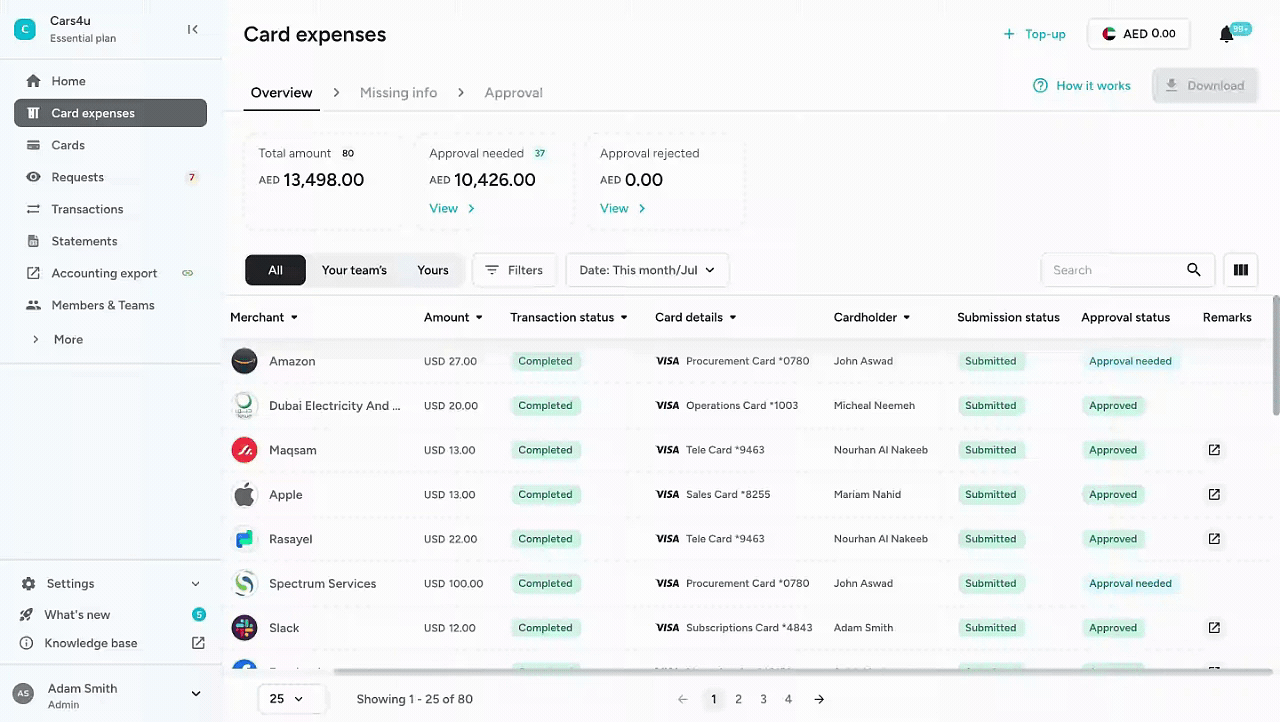
The policy comes first because both follow-up features in Step 7 read from it.
- Where to find it: Submission Policies is under More in the main menu.
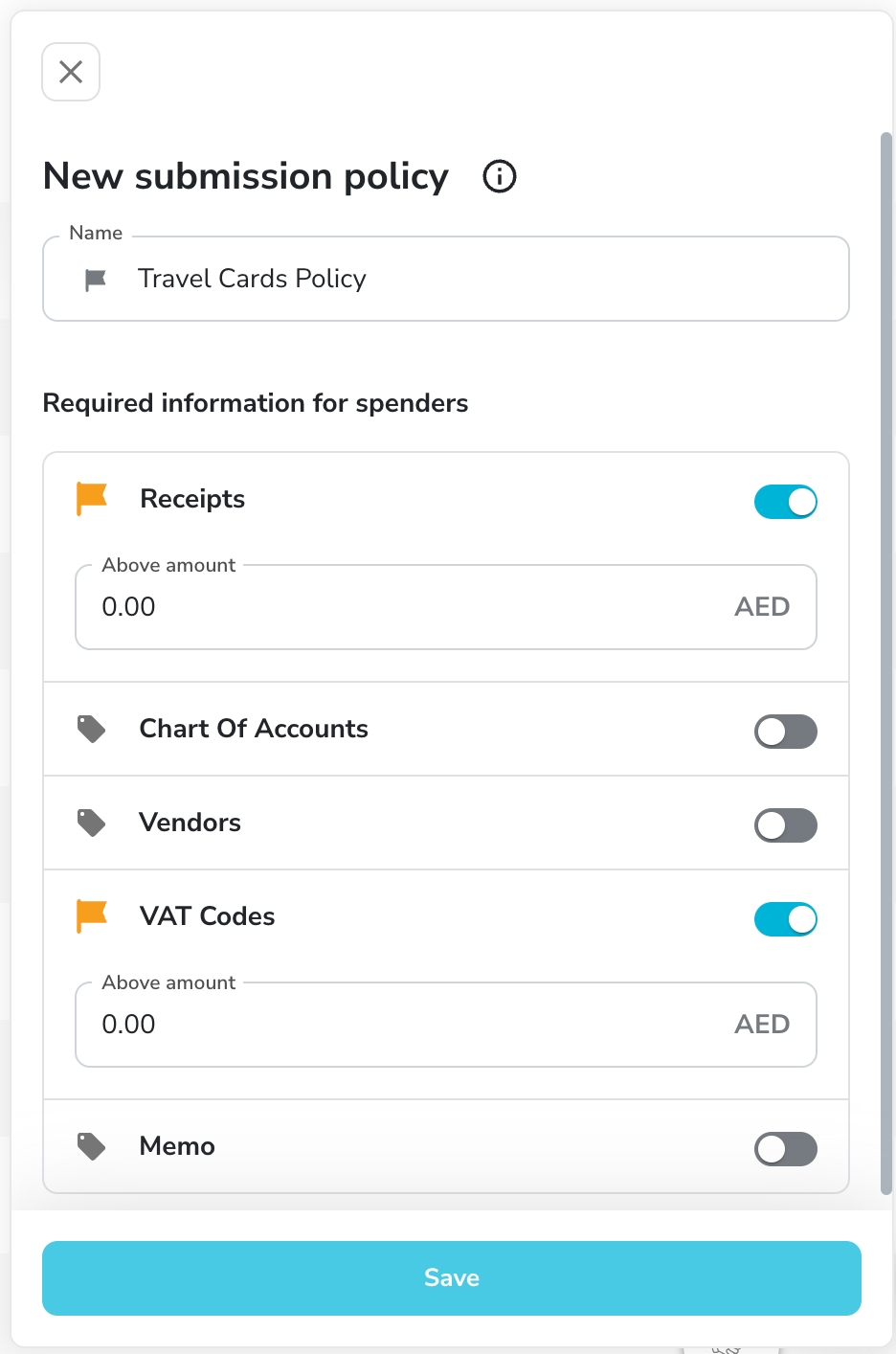
- Required fields: toggle the details a spender has to provide, such as the receipt, a memo, VAT information, or accounting fields.
- Amount threshold: a field can become mandatory only above a set amount. Entering 0 makes it mandatory on every expense.
- Card-specific policies: a travel card might need receipts and VAT information on every purchase. For a digital ads card, a memo on each charge may be enough.
- Who can edit: Admins, plus accountants holding the Internal Accountant or External Accountant role.
A custom card policy only applies to purchases made after the card is linked to it.
We’d recommend finishing the accounting setup beforehand if you want accounting fields in the policy.
Step 2: Photograph card receipts from the payment notification
After every Pemo card payment, the cardholder gets a push notification asking for the receipt.
Tapping that notification opens the expense in the Pemo app, where a photo of the receipt attaches to it straight away.

💡 Adding a one-line comment at the till saves finance a follow-up message about what the purchase was for.
Missed receipts can go in later from the expense in the mobile app, or through Add receipts in the Card Expenses tab on the web.
Step 3: Share a forwarding address with each cardholder
Inside the Documents Inbox, under More in the main menu, Pemo gives every user a unique email address.
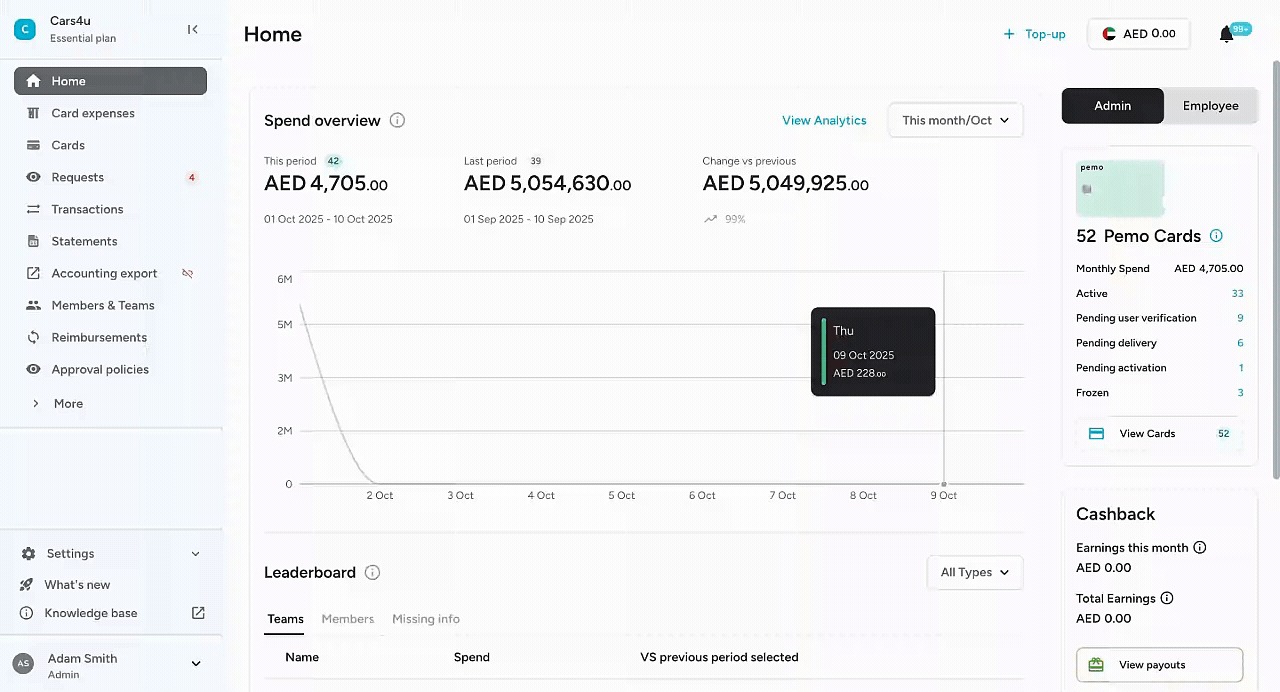
Pemo matches forwarded documents to their expenses automatically, flagging any it can't place as Unmatched (see Step 6).
For a forward to match, check the sender and the attachment:
- Sender: the forward has to come from the address the cardholder registered with Pemo.
- Attachment: Pemo's guide describes forwarding emails that carry the receipt as an attachment.
Saving the address in your mail app's contacts cuts each forward down to a few taps.
Step 4: Route recurring vendor invoices to Pemo
When a recurring vendor's billing or contact email points to a cardholder's Documents Inbox address, its receipts reach Pemo without anyone forwarding them.
Pemo has published setup guides for several vendors UAE teams pay by card:
- Ride-hailing: Careem and Uber email each trip receipt to the address on your profile. Bolt, covered in the same guide, uses the work email on its Work profile.
- Ad platforms: the guide for Meta, TikTok Ads, and Google Ads points to each platform's billing email or billing contact field.
- Food delivery: Talabat and Noon have a dedicated walkthrough, which also covers Deliveroo.
- Software and AI subscriptions: there are separate guides for SaaS tools such as QuickBooks and Figma and for AI tools such as ChatGPT and Claude.
Pick the Documents Inbox address belonging to whoever's card that vendor charges.
If a Meta ad account runs on the marketing lead's card, its invoices belong in the marketing lead's inbox, where Pemo can attach each one to its expense as it arrives.
Changing a billing email usually needs admin or finance permissions on the vendor's side and applies to future invoices.
Google sometimes adds a confirmation step for the new address, after which invoices start flowing to Pemo.
Step 5: Add WhatsApp and bulk upload for the rest
WhatsApp covers receipts already saved on a phone, from screenshots of online orders to PDFs a supplier shared in a chat.
Bulk upload is the route for paper that piles up during a trip or a busy month.
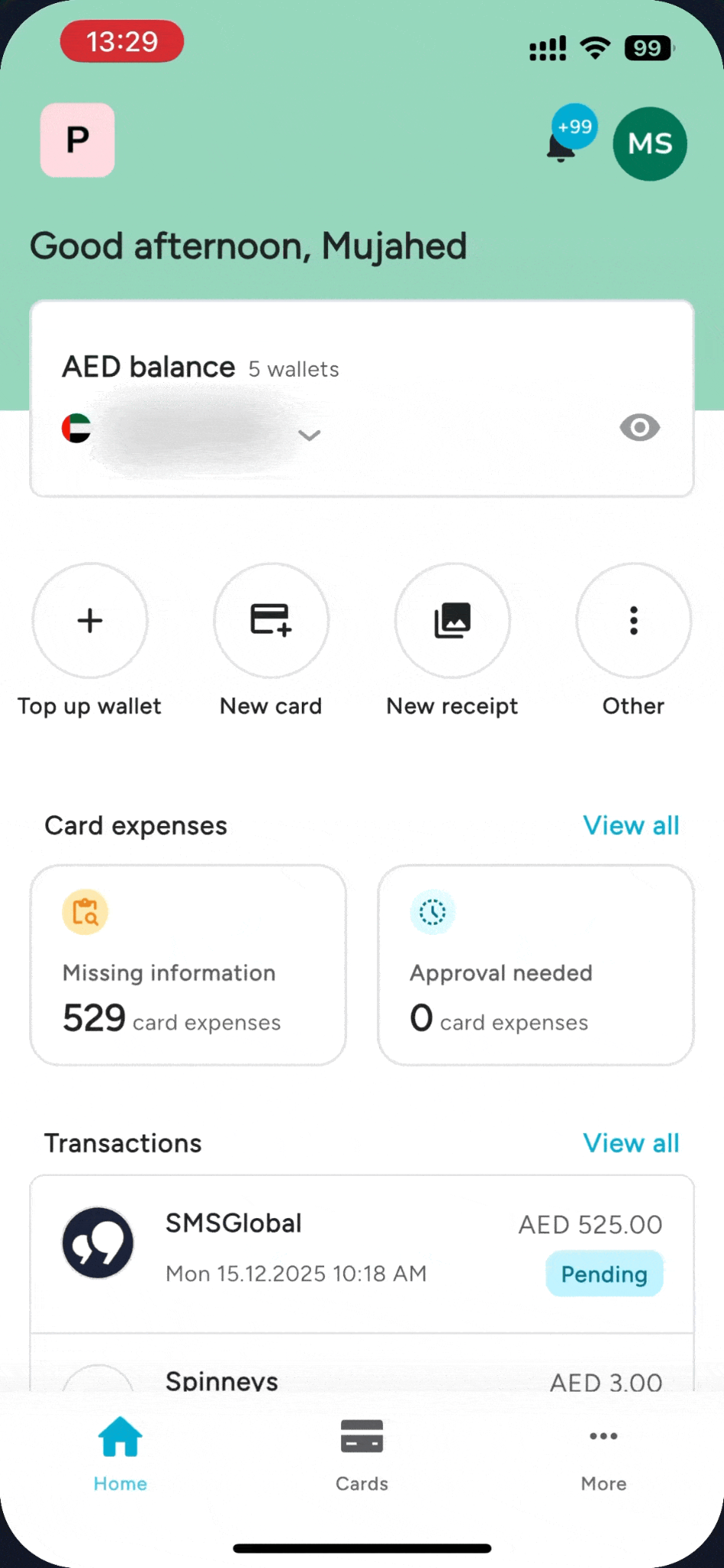
Pemo's WhatsApp receipt channel works like this:
- Number: 052 545 8186, also shown in the app under More, then Documents Inbox, the email icon, and Send to WhatsApp.
- File types: images, including photos and screenshots, or PDFs.
- Sender: the phone number registered on your Pemo profile.
- Shared numbers: Pemo skips auto-matching for a number shared across two or more Pemo accounts, a safeguard against a receipt being attached to the wrong transaction.
The number takes receipts only and isn't a route to Pemo's support team.
For a backlog of photographed or scanned paper, the Documents Inbox takes files through its upload option or as a drag-and-drop batch onto the screen.
Uploaded documents are matched to expenses the same way as forwarded email.
Step 6: Work through the four document statuses
Documents in the Documents Inbox carry one of four statuses.
Only Matched needs no decision from you:
- Matched: Pemo has paired the document with its expense. After 15 days it drops out of the inbox but stays on the expense in the Expenses tab.
- Unmatched: details were missing or unclear. The Your expenses tab inside the document lets you search by date or keyword and link it yourself.
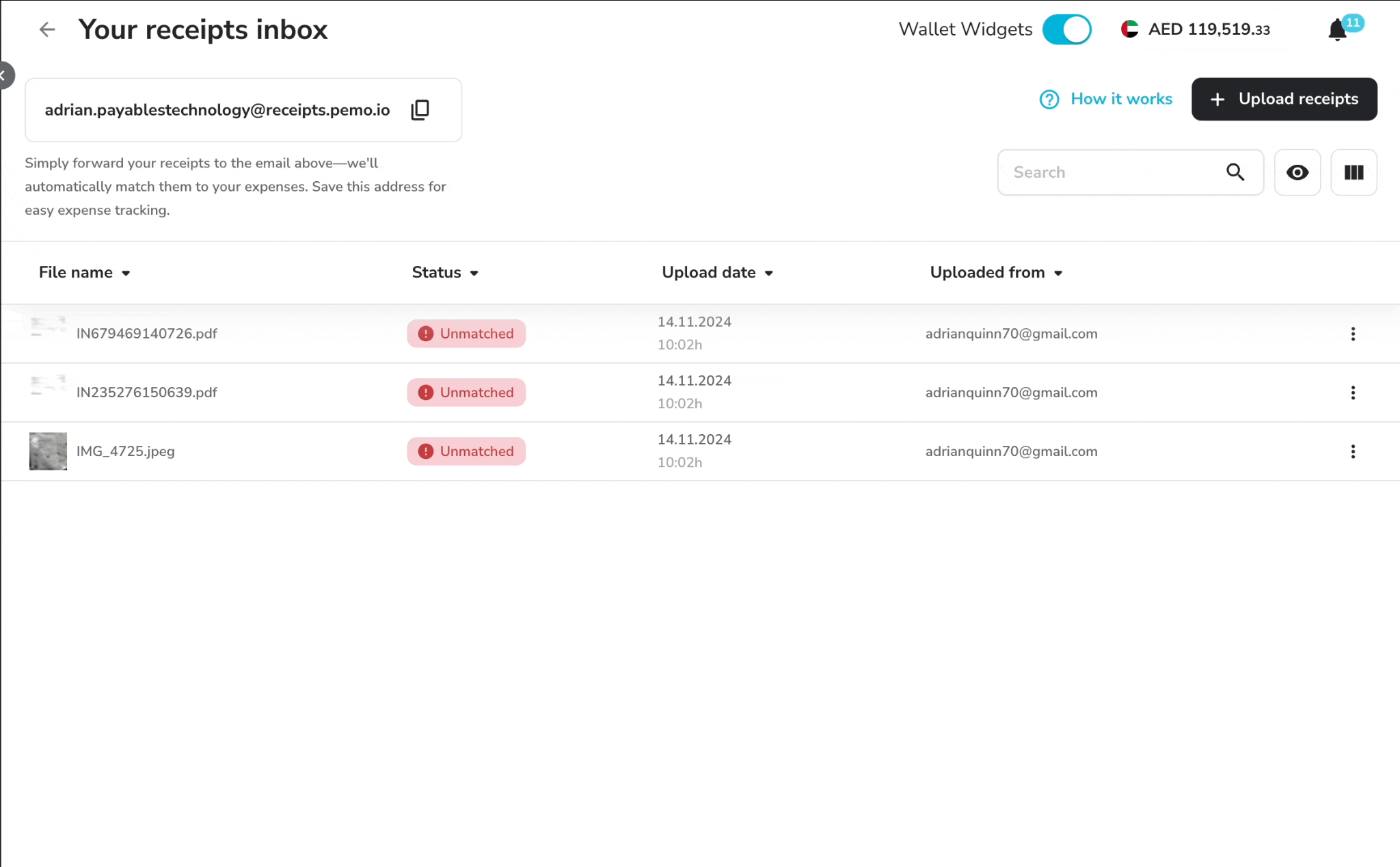
- Duplicate: Pemo spotted a possible repeat of an earlier upload. A genuine repeat can be deleted. If it turns out to be new, it can be marked as not a duplicate and attached to its expense manually.
- File Error: the format wasn't supported, or the file was corrupt. A fresh upload in an accepted file type resolves it.
With the eye icon, matched items disappear from the list, and only open work stays visible.
A document linked to the wrong expense can be unlinked from the same view.
Step 7: Let Receipt Chaser and Compliance Officer handle follow-ups
With a submission policy in place, Pemo handles the chasing through two automated features.
Neither one needs anyone from finance to send a message or unblock a card.
Receipt Chaser belongs to Pemo's Capture Agent and sends cardholders two kinds of message:
- A weekly reminder: a scheduled list of anything the cardholder still owes, from a missing receipt to an expense outside the policy.
- A pre-block warning: an alert sent ahead of time when the submission policy is about to freeze someone's card.
Pemo's Control Agent runs the second feature, Compliance Officer.
If a transaction is still missing a receipt or field the policy requires after the warning, Compliance Officer blocks the cardholder's card.
The block clears by itself the moment the cardholder adds what's missing, without an admin stepping in.
To turn Compliance Officer on, you need the policy from Step 1 in place before enabling the feature.
➡️ A Receipt Chaser warning comes before any Compliance Officer block.
Step 8: Review Receipt Verification before exporting
On the Export Pages, Receipt Verification gives each expense a status that tells you whether its receipt is ready for your books.
Pemo AI runs three checks on every uploaded receipt:
- Amount and currency: compared against the expense. One matching receipt is enough for this check to pass.
- Date: the receipt date has to line up with the expense date.
- Tax invoice: Pemo checks whether the document counts as a valid tax invoice.
No action is needed on an Auto-verified expense, because the amount and currency on its receipt match.
Expenses marked Unverified (an amount or currency mismatch) or Receipt Missing (no document that fits yet) deserve a look before export.
Pemo Copilot fills in accounting fields such as the chart of accounts and VAT, based on how your team has coded past expenses.
Online integrations with QuickBooks Online, Zoho Books, Xero, and Wafeq sync expenses together with their receipts in one click.
For other systems, Pemo's CSV export produces a file ready for upload.
Exported expenses drop out of the export table, which stops the same expense from being sent twice.
When does a receipt still need someone from the team?
A person still needs to step in for out-of-pocket purchases, receipts from an unlinked sender, misrouted vendor invoices, and Unverified expenses:
- Out-of-pocket purchases: a personal-card payment has no Pemo card transaction behind it.
The spender submits a reimbursement in Pemo with the date, amount, merchant, and receipt.
Pemo's default reimbursement policy has no required fields until an admin or accountant adds them in Submission Policies.
- Receipts from an unlinked sender: a forward from a shared mailbox, or a WhatsApp photo from a second phone, falls outside what Pemo's matching expects. Resend it from the cardholder's registered email address or phone number.
- Misrouted vendor invoices: Pemo's vendor guides ask for the Documents Inbox address of the cardholder whose card pays.
If an ad account bills one person's card but emails a colleague's inbox, correct the billing email in the ad platform.
- Unverified expenses: someone checks the receipt against the expense and replaces it if the wrong document went in.
How do you measure whether Pemo is catching every receipt?
Pemo reports the answer in its AI agent metrics, each measured across your organization for the previous 30 days:
- Documents processed: how many documents the Capture Agent has taken in from direct upload, WhatsApp, and the Documents Inbox.
- Reminders sent: the number of weekly nudges and pre-block alerts Receipt Chaser has sent.
- Non-compliant cards blocked: cards Compliance Officer has blocked because a transaction broke the submission policy.
Next to those counts, Compliance Officer reports two percentages:
- Compliant card %: the proportion of active cards currently meeting the submission policy.
- Compliant transaction %: the proportion of transactions that have a receipt on them.
A weekly email listing incomplete submissions also goes to Admins and Team Leads on Fridays at 4:00 PM, UAE time.
In my view, the number to watch is compliant transaction %.
If it climbs while reminders sent and cards blocked fall, receipts are arriving before anyone has to ask.
Start with one policy and one inbox address
Receipt capture turns automatic when every receipt has a route to its expense and a rule saying when it's due.
A submission policy and one Documents Inbox address per cardholder are enough to begin with.
Vendor billing emails and WhatsApp can follow.
Reminders move to Receipt Chaser as soon as the policy is live.
Pemo brings the card, the Documents Inbox, the follow-ups, and the accounting export into one platform.
You can sign up for Pemo's free plan or book a demo to see the Documents Inbox match receipts from your own vendors.
⚠️ Disclaimer: This article was last updated on the 9th of October, 2026, and if there's any misinterpretation of the information, please contact us, and we will fact-check it. This guide covers receipt capture workflows as general information, not tax, accounting, or legal advice.
Frequently asked questions
Can Pemo match a receipt forwarded from any email address?
No.
Pemo expects forwarded documents to come from the email address the cardholder registered with Pemo.
Documents Inbox addresses are personal too, one per user.
Which file types does Pemo's WhatsApp number accept?
Pemo's WhatsApp number accepts images and PDFs, with phone photos and screenshots both counting as images.
The message has to come from the phone number registered on your Pemo profile.
Where does a matched document go after 15 days?
Fifteen days after matching, Pemo clears the document from the Documents Inbox.
The file itself isn't lost, since it remains on the expense and opens from the Expenses tab.
How often does Receipt Chaser contact cardholders?
Weekly, through a list of any receipt they still owe or any expense outside the policy.
A separate alert goes out ahead of any card freeze.
Is there a warning before Compliance Officer blocks a card?
Yes.
Receipt Chaser alerts the cardholder before any block happens.
Cards come back into use on their own as soon as the cardholder supplies what the policy asked for.
Does a custom card policy cover older expenses?
No.
Only purchases made after the card is linked to the policy fall under it.
Which accounting systems can Pemo sync with?
Pemo syncs expenses and their receipts directly with QuickBooks Online, Zoho Books, Xero, and Wafeq.
Separate integration guides exist for Odoo and Tally. Any other system can take Pemo's CSV export.


